
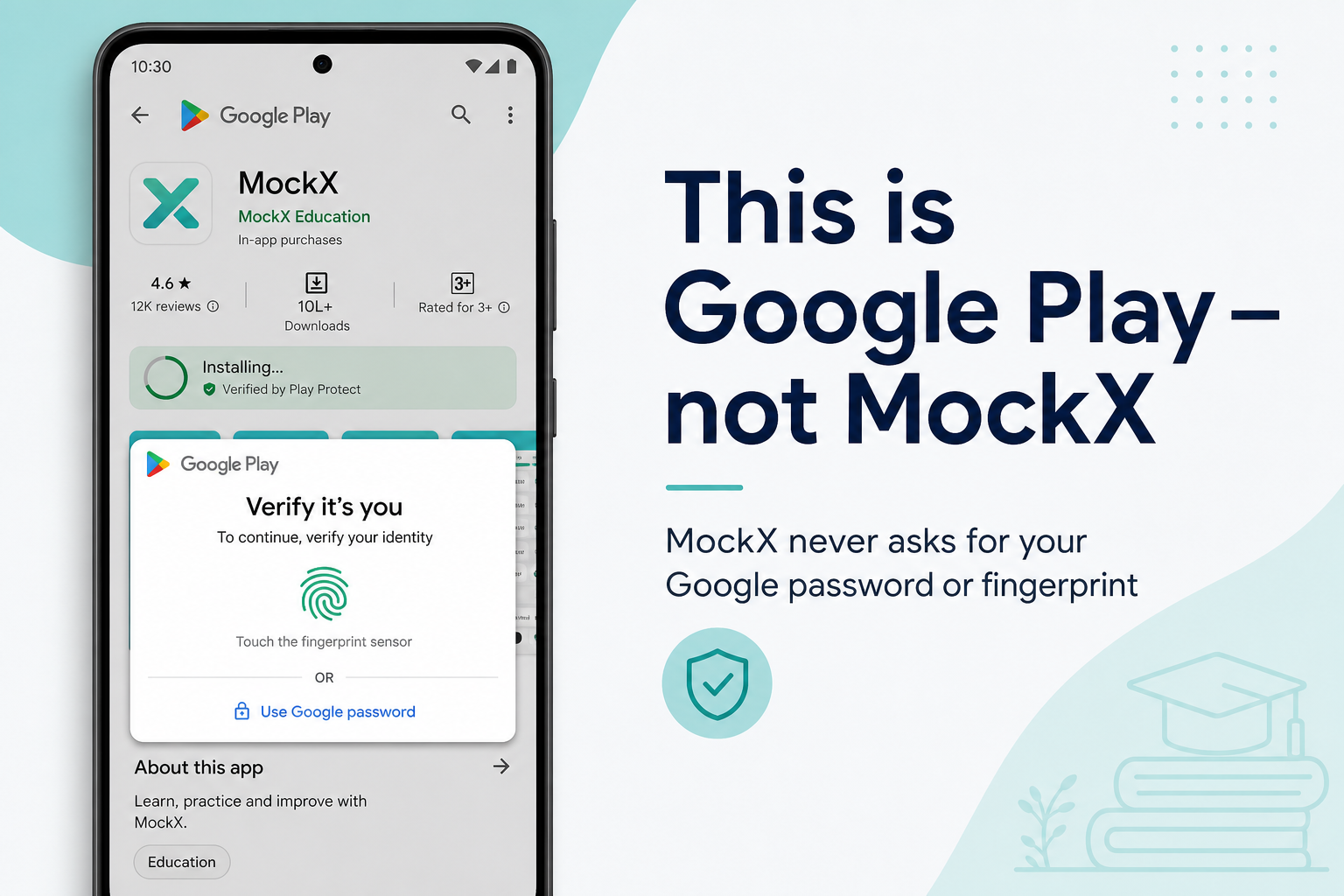
Why Google Play Asks for Password or Fingerprint
MockX never asks for your Google password. That prompt is Google Play protecting your account while the app installs.
MockX does not want your Google password, fingerprint, face unlock, or UPI PIN. If that screen appears while you tap Install on MockX, it is Google Play Store checking that it is really you. We cannot see that password. We cannot store it. We cannot skip Google’s check for you.
This happens on many free apps in India — not only MockX — after you add a fingerprint, share a phone, or when Play wants extra confirmation.
Install only from the official listing: MockX on Google Play. iPhone users use the App Store. After install, log in with the email you used on MockX, not your Google password, unless Google Play itself asked for it.
What you are seeing
The sheet usually says something like “Verify it’s you”, “Use fingerprint or face”, or “Use password”. The Play triangle logo and the words Google Play sit on that sheet.
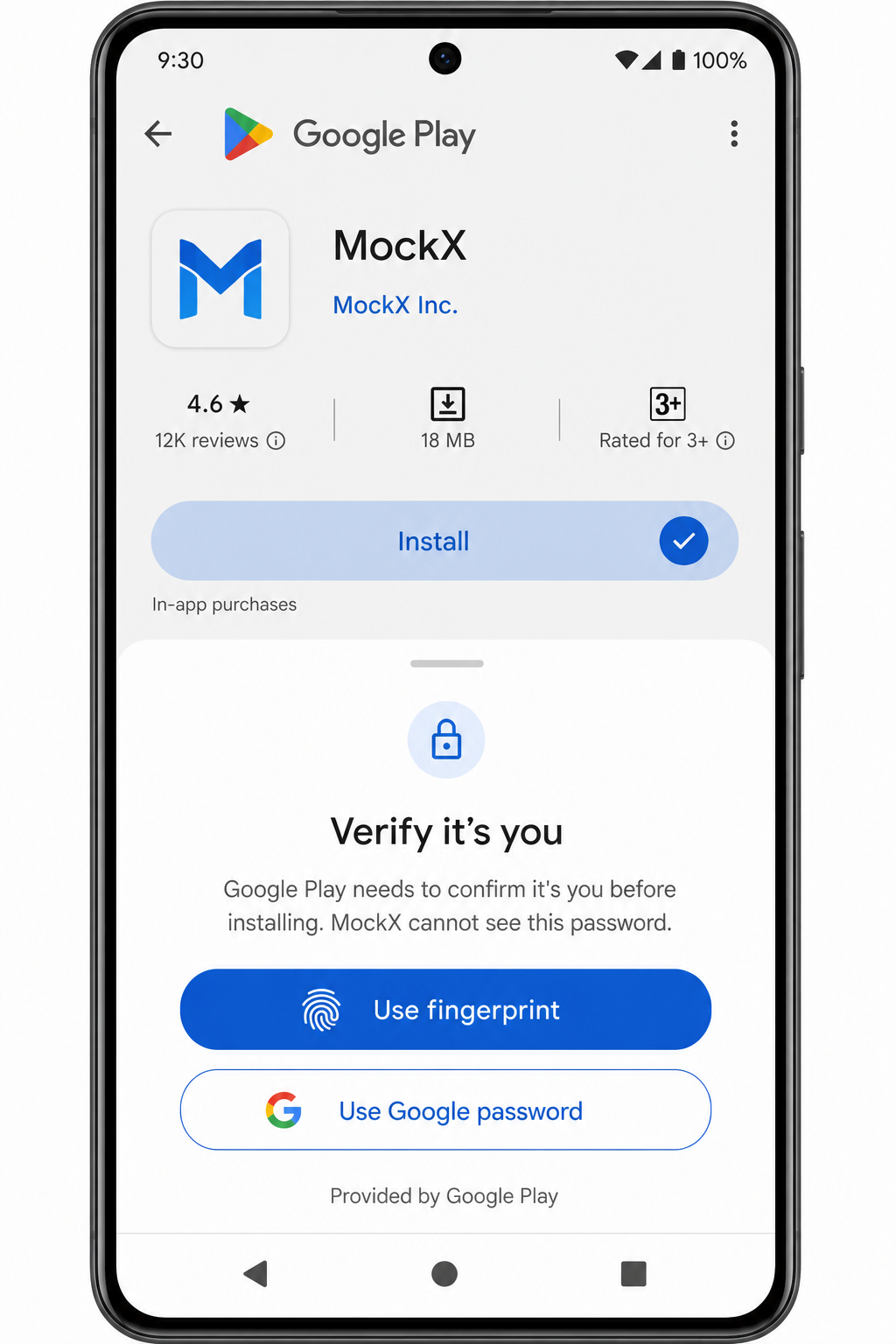
| Who shows the screen | What they want | Who receives it |
|---|---|---|
| Google Play Store | Prove this Google account is yours before Install | Google only |
| Your bank / UPI app | Confirm a paid Play purchase (MockX install is free) | Your bank, not MockX |
| MockX app | MockX login after install | Your MockX email / phone — never your Google password |
If anyone on WhatsApp, Telegram, or a website asks you to type your Gmail password “for MockX”, close it. That is a scam. MockX staff will never ask for it.
How to finish the install (recommended)
- Stay on the Google Play screen (do not paste the password into Chrome, WhatsApp, or the MockX app).
- Prefer fingerprint / face if your phone already uses it.
- Or tap Use password and enter the password of the Google account signed into Play Store (the Gmail on that phone).
- Wait for Installed, then open MockX and log in with your MockX email.
Forgot the Google password? Recover it at Google Account recovery — not through MockX.
How to turn the Play Store prompt off or change it
Only change this if you own the phone. If younger siblings use it, keep verification on.
Google’s official path (Purchase verification help):
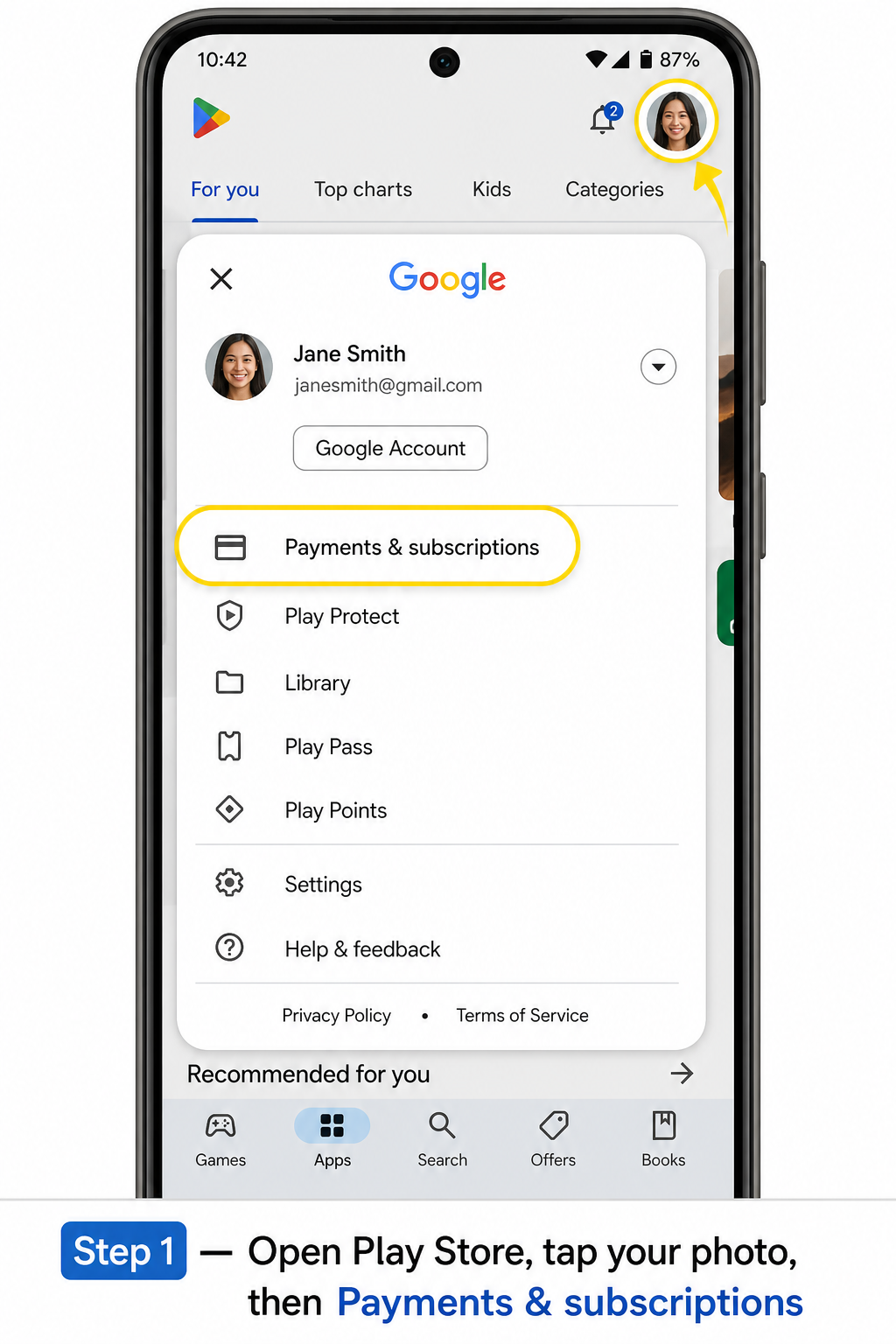
- Open the Google Play Store app.
- Tap your profile photo (top right).
- Tap Payments & subscriptions.
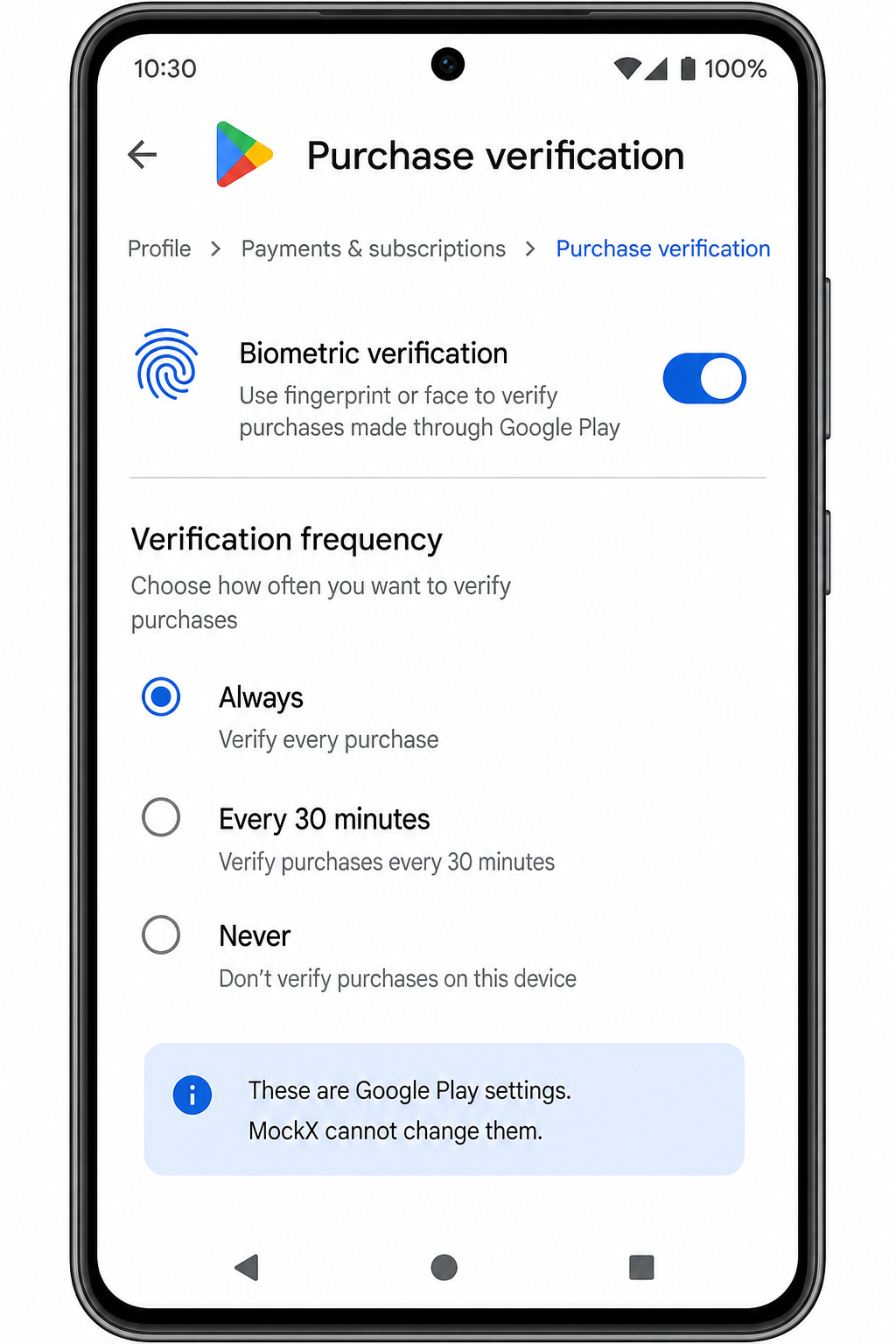
- Tap Purchase verification.
- Change Biometric verification (fingerprint / face) on or off.
- Under Verification requirement or Verification frequency, choose how often Play asks:
- Always — every Play purchase / some installs (safest on a shared phone)
- Every 30 minutes
- Never — Play will not keep asking (you are responsible for any Play charges on that device)
Menus can say Settings → Authentication on some Android versions. Same idea: it is still Play Store, not MockX.
To change this, Google often asks for your Google password one more time. That is also Play Store, not us.
MockX is free to install
The Play listing is a free download. A password/fingerprint sheet on Install is still Play’s “is this you?” check. It is not MockX charging you. If UPI or a card screen appears, you are not on a free install — go back and open only play.google.com/store/apps/details?id=com.mockx.in.
What MockX will never do
- Ask for Gmail / Google password inside the MockX app
- Ask for fingerprint “to activate Premium”
- Send an APK on WhatsApp
- Call you and ask you to read an OTP
Premium is unlocked after you pay on our site, then log in with the same email in the app or on the web.
Q1: Why is Google Play asking for my Google password when I install MockX? A: Google Play is verifying your Google account. MockX does not receive that password. Use fingerprint or the Google password of the account on that phone, on the Play Store sheet only.
Q2: For installing the app there is a need of fingerprint or password. Is that MockX? A: No. It is Play Store purchase / install verification. You can complete it, or change it under Play Store → profile → Payments & subscriptions → Purchase verification.
Q3: Can I disable the fingerprint prompt? A: Yes, in Purchase verification: turn biometric off and/or set frequency to Never. Keep it on if others use the phone. Google’s help page: support.google.com/googleplay/answer/1626831
Q4: Where should I download MockX? A: Only Google Play (com.mockx.in) or the Apple App Store. After install, log in with your MockX email — the same one used at checkout.
Conclusion
The password and fingerprint lock you see while downloading MockX is Google Play protecting your Google account. We do not want that password. Finish the Play prompt, or change it in Play’s Purchase verification settings, then open MockX and sign in with your MockX email.
Recent NEET Updates
Stay ahead in your preparation with our latest blogs:

Reaching the Age of Adolescence Class 8 Science | Rapid Revision in 10 Minutes | NCERT
Step through it in the video below

Reproduction in Animals Class 8 Science | Rapid Revision in 10 Minutes | NCERT
Step through it in the video below

Combustion and Flame Class 8 Science 🔥 | Rapid Revision in 10 Minutes | NCERT
Step through it in the video below
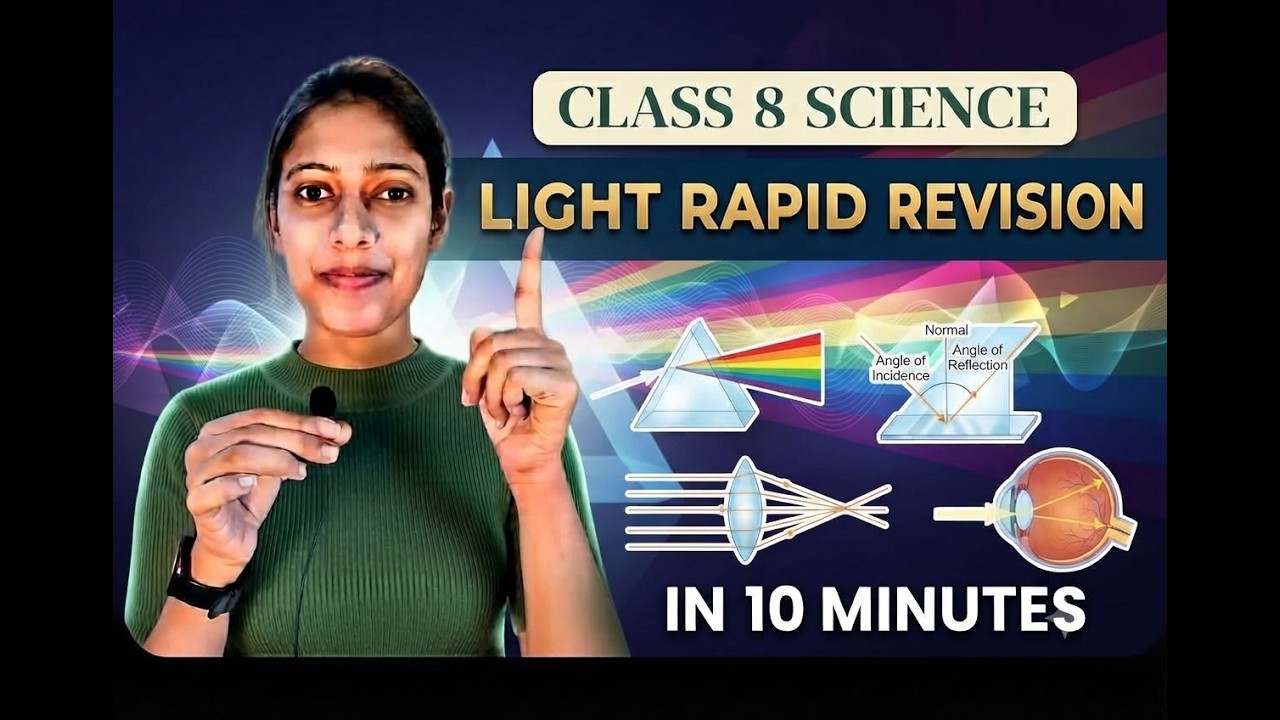
Light Class 8 Science | Rapid Revision in 10 Minutes | NCERT Class 8 Light | Important Concepts
Step through it in the video below
Ready to practice? Get the MockX App
Everything you need for NEET 2026 — available on Android & iOS.